Daisy Sol Val XL Quickstart
Set up the Scalables Daisy Sol Val XL solenoid valve manifold from tubing connections to Python valve switching.
Setup, Configuration, and Valve Switching
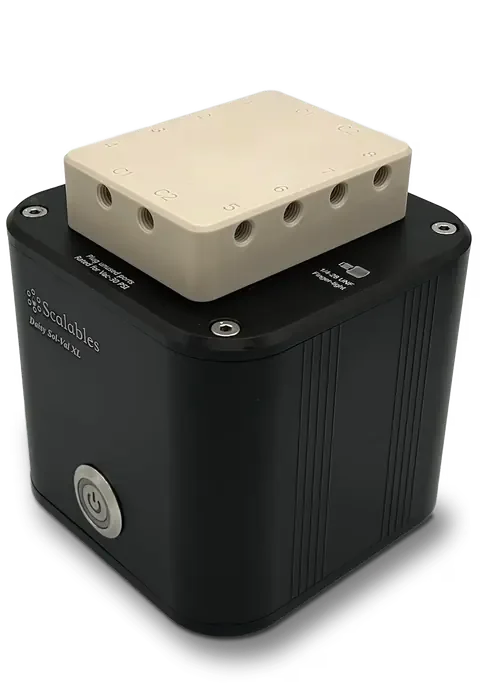
The Scalables Daisy Sol Val XL is a higher-flow solenoid valve manifold that can switch up to 8 lines. It handles flow rates up to about 400 ml/min, higher than the Sol Val. This guide walks through everything shown in the quickstart video, with additional detail.
Manifold Configurations
The Sol Val XL can be configured in two ways: as a single 8x1 manifold or as two independent 4x1 manifolds. To use the single common port in the 8x1 configuration, connect common port 1 and common port 2 with a port bridge. For two 4x1 manifolds, leave the bridge off so each set of valves has its own common port.
The Sol Val XL has a pressure rating up to 30 psi.
use the Daisy Rotary Valve instead.
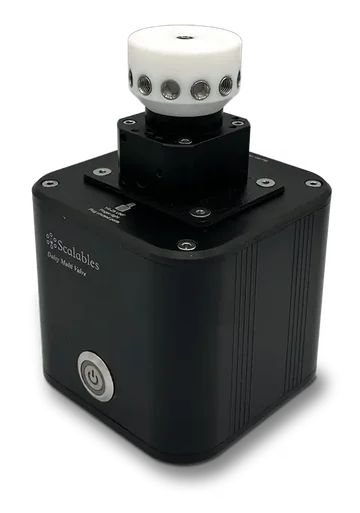 Daisy Rotary Valve →
Tubing and Connections
The Sol Val XL uses PTFE tubing with a ferrule and a fitting for the quarter-28 port. When using it with peristaltic pumps, use a barbed hose fitting that matches the tubing ID. Two options are available for this connection: a nylon direct-to-port adapter or a PVDF luer lock coupling.
Connect tubing to each port in use. Plug any unused ports with quarter-28 stopper fittings so nothing leaks.
Power and Computer Connection
Plug the power supply into the Daisy. Then connect the data cable: the micro USB end into the Daisy and the other end into a computer. Press the Power button on the Daisy.
Using the Daisy Controller Software
Launch the Daisy Controller Software and select the Instrument Refresh button to detect the connected Daisy. The instrument list shows which group and index the Sol Val XL occupies.
The right panel lists the ports available to open or close. Ports can be controlled in real time with the toggle, or by selecting one or more ports and clicking Open. In this example, common port 1 is used. Select the Port 1 button and click Open to open the port, then click Close to close it.
Switching Valves with Python
Next, select Sample Code to view the function for opening valves, turn_on_valves(). It takes a Python set, which is a group of numbers enclosed in curly braces, such as {1} or {1, 3}. A set is required even to open just one valve. Calling it again with a different set closes everything and opens only the new set. To close all valves at once, use turn_off_valves().
The first example opens valve 1, then opens valve 3, pausing 3 seconds before and after switching valves. Then it closes all valves. In the video, this dispenses into the Erlenmeyer flask in back, then into the Erlenmeyer flask in front.
The second example opens valve 1 and valve 6. It uses both common ports independently but concurrently, in the two 4x1 configurations.
Cleaning After Use
After using the Sol Val XL, clean the tubing and manifold with water. Make sure the valves are open and rinse with water. Then remove the inlet tubing from any liquid and dry the tubing and manifold with air.
Inline Sampling
Another common configuration for the Sol Val and Sol Val XL connects tubing to both sides of the common port. This allows in-process sampling without interrupting flow.
Interactive Python notebooks
Detailed Sol Val XL walkthroughs in Python on GitHub. Choose the set that matches how you run Daisy.
Daisy Controller Software notebook
For use within the notebook section of the Daisy Controller Software
Daisy Python library notebook
For use with the daisy python library